This walkthrough matches the current Shopify embedded app and your SearchMention web dashboard. Five minutes in the admin is enough to see readiness scores, sample AI prompts, and (with our Web Pixel) AI referral signals.
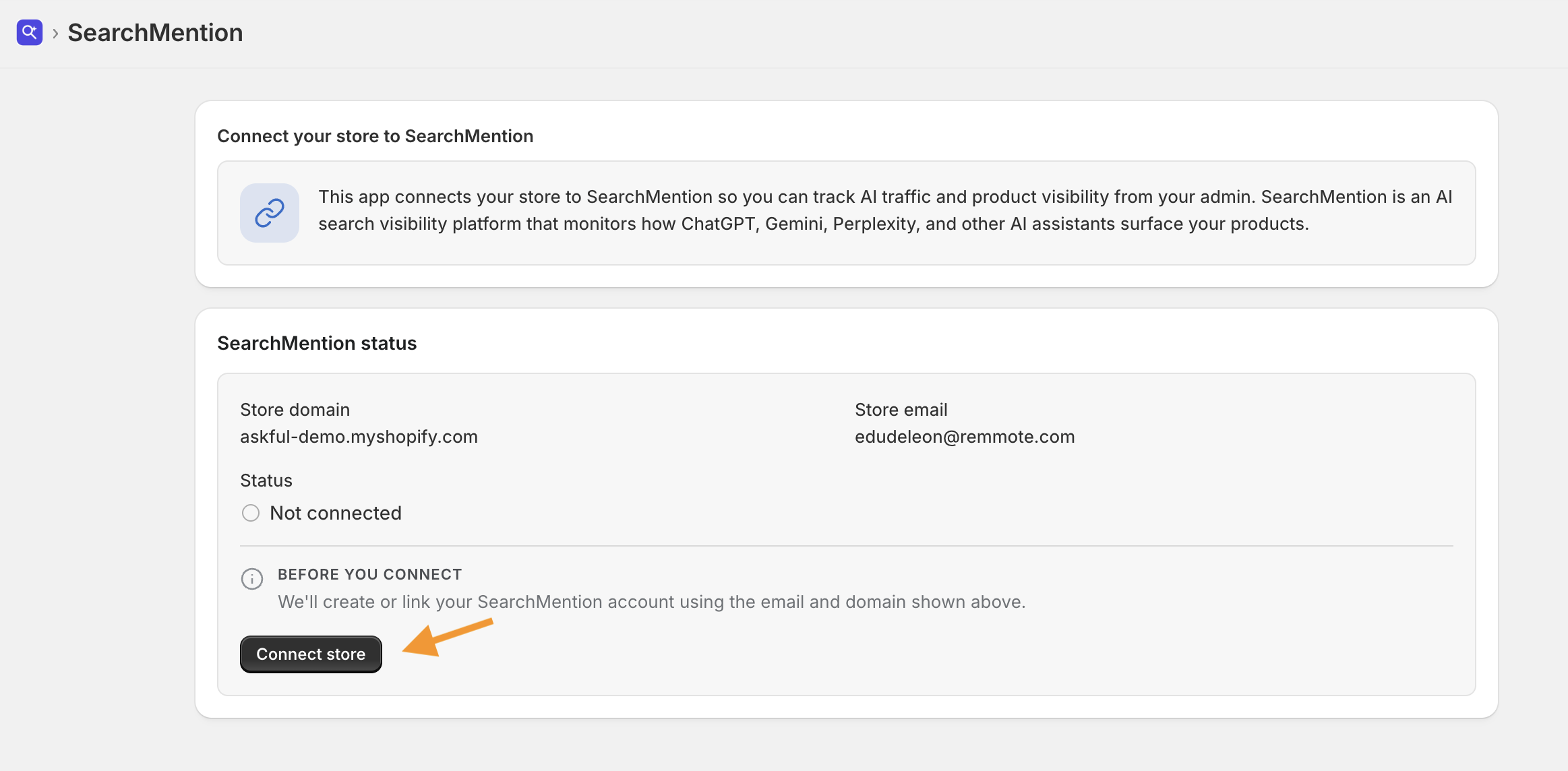
1 Connect your store
Install SearchMention from the Shopify App Store, open the app from your Shopify admin, and review the store domain and email shown on the welcome screen. When you are ready, choose Connect store—we create or link your SearchMention project using those details.
2 Run your first AI readiness scan
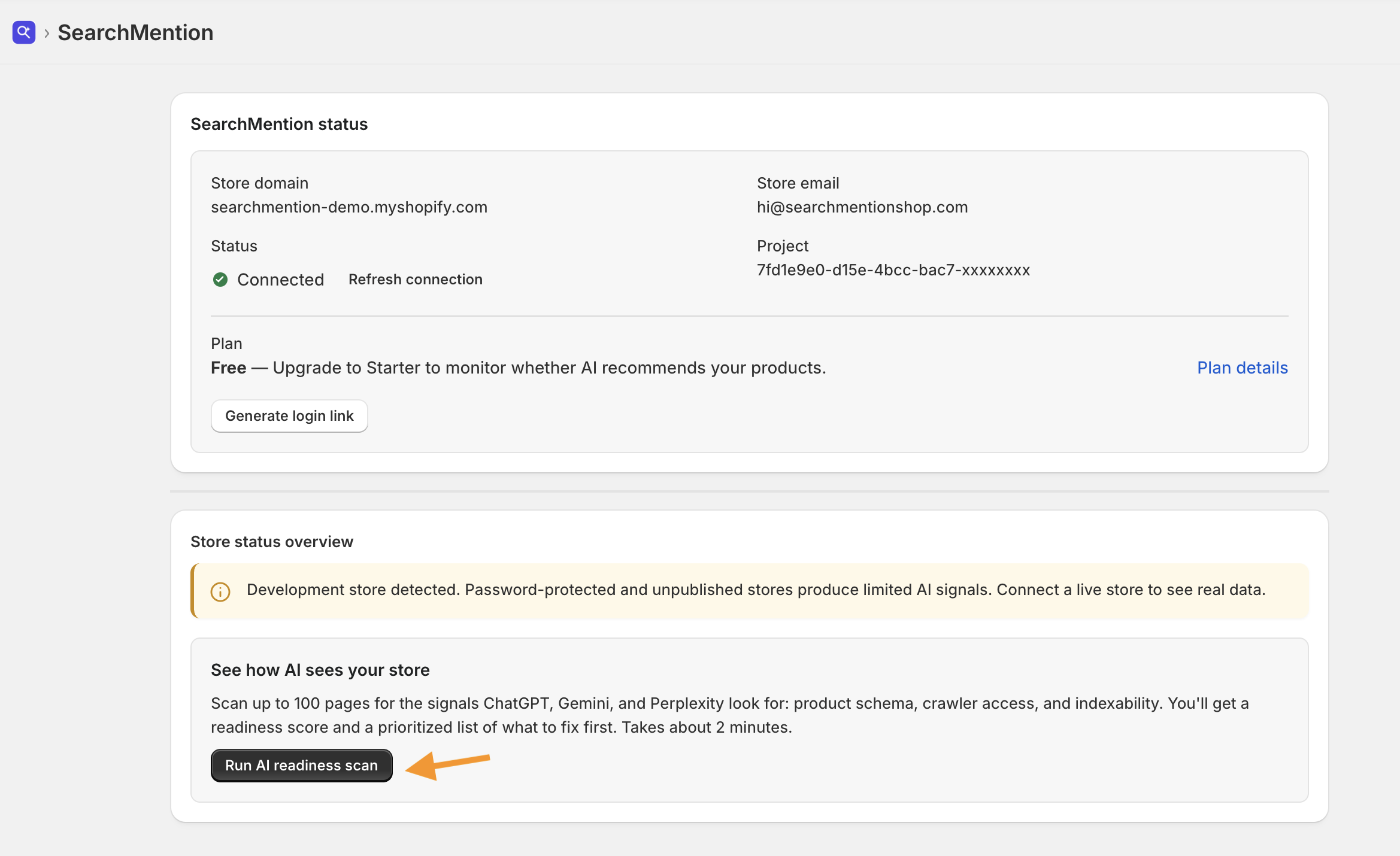
After you connect, the status card shows Connected along with your plan and project reference. In Store status overview, choose Run AI readiness scan. We analyze up to 100 pages for structured data, crawler access, and indexability signals used by ChatGPT, Gemini, and Perplexity—usually about two minutes.
3 Review readiness and generate sample prompts
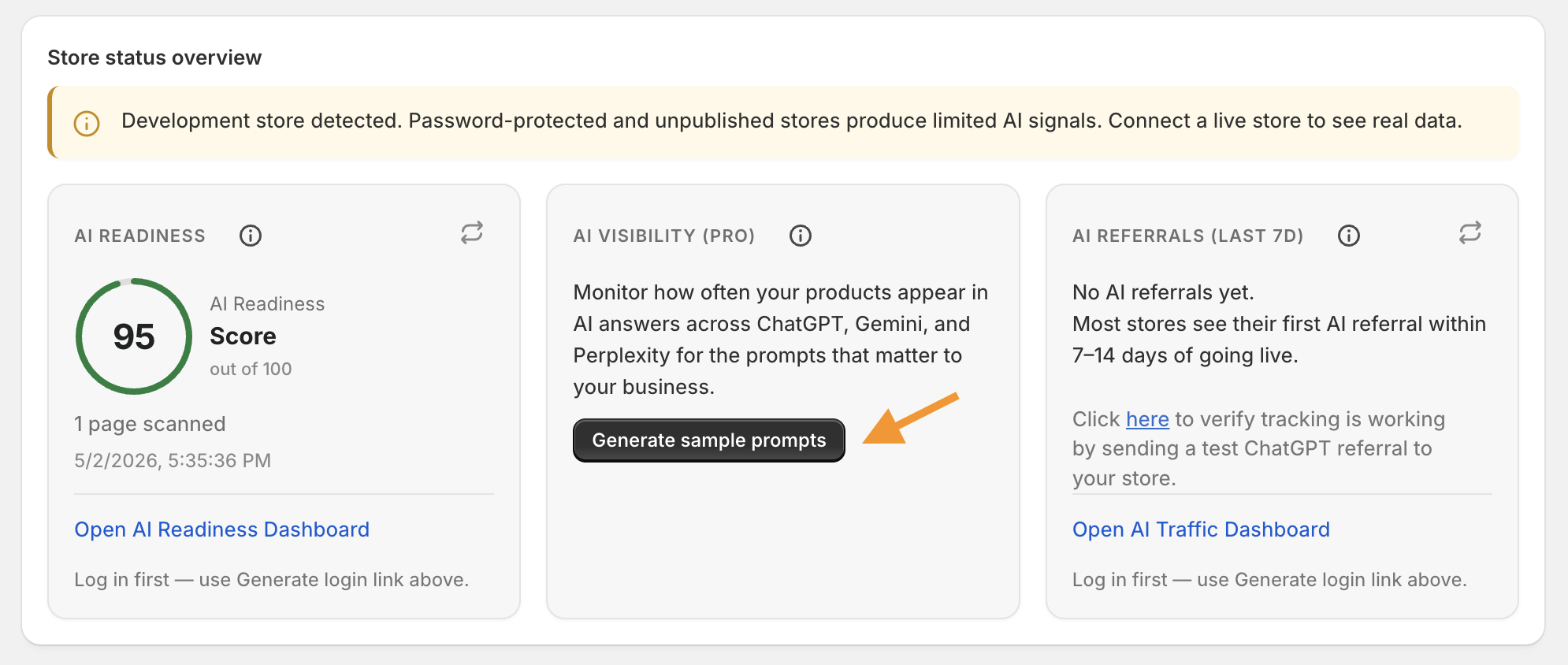
When the scan finishes, you get an AI Readiness score, how many pages were scanned, and the time of the last run. Under AI Visibility, choose Generate sample prompts—we draft shopping-style queries tailored to your catalog so you can see how AI visibility monitoring works before running a full prompt batch.
4 Run prompts and watch AI referrals
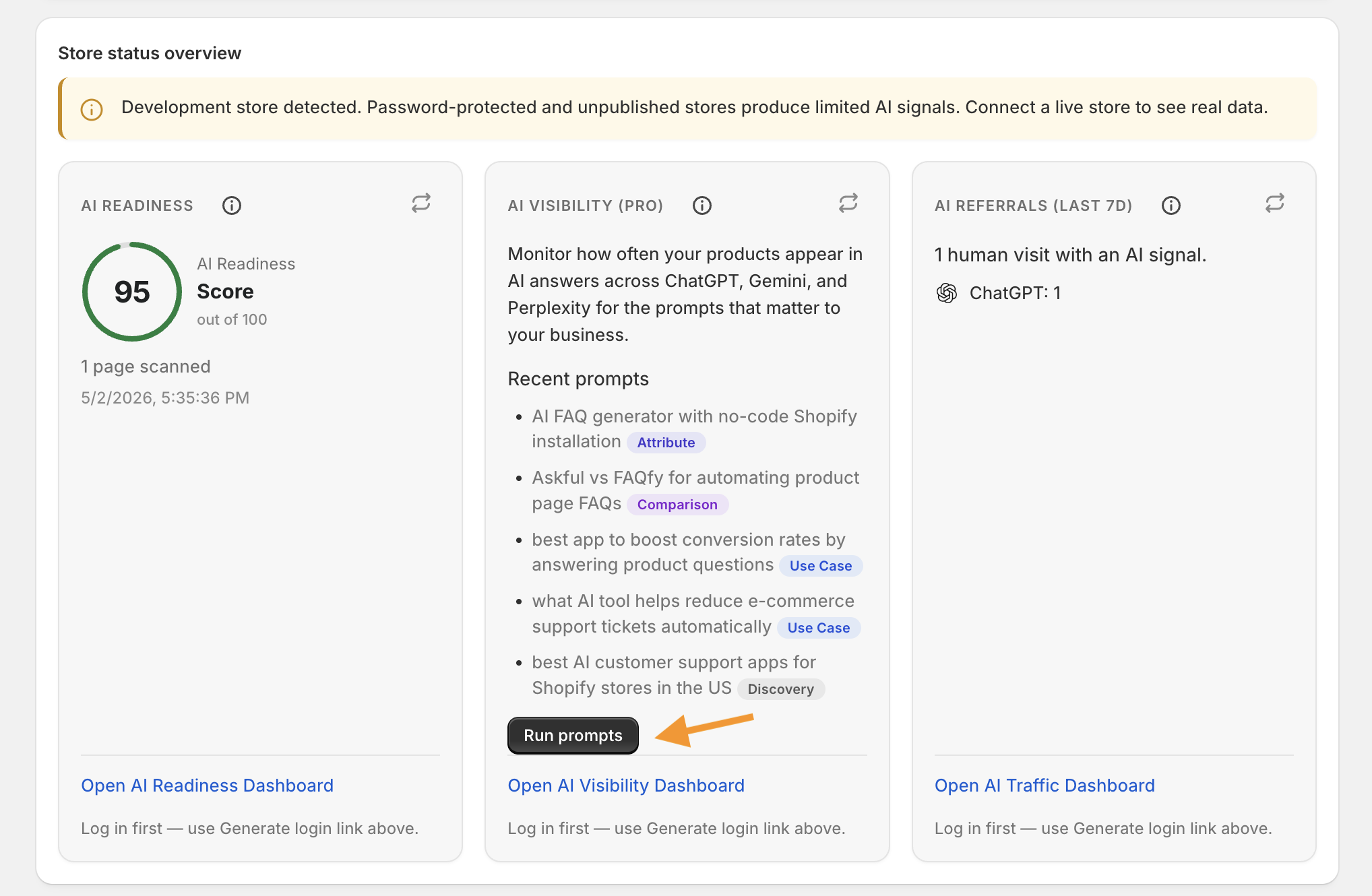
After prompts are generated, they appear as a list with categories (for example discovery or comparison). Use Run prompts to execute them against the models enabled for your plan. The AI Referrals card summarizes visits attributed to AI sources (such as ChatGPT) over the last seven days once the Web Pixel is capturing traffic—many stores see their first signals within one to two weeks of going live.
5 Open the full SearchMention dashboard
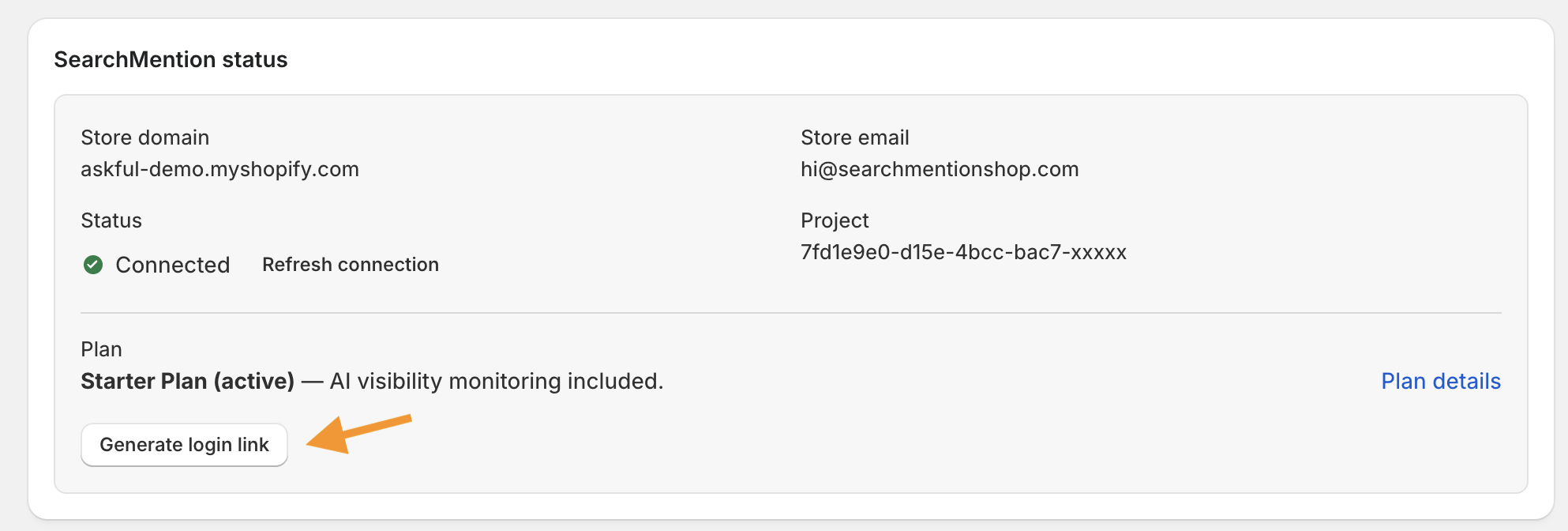
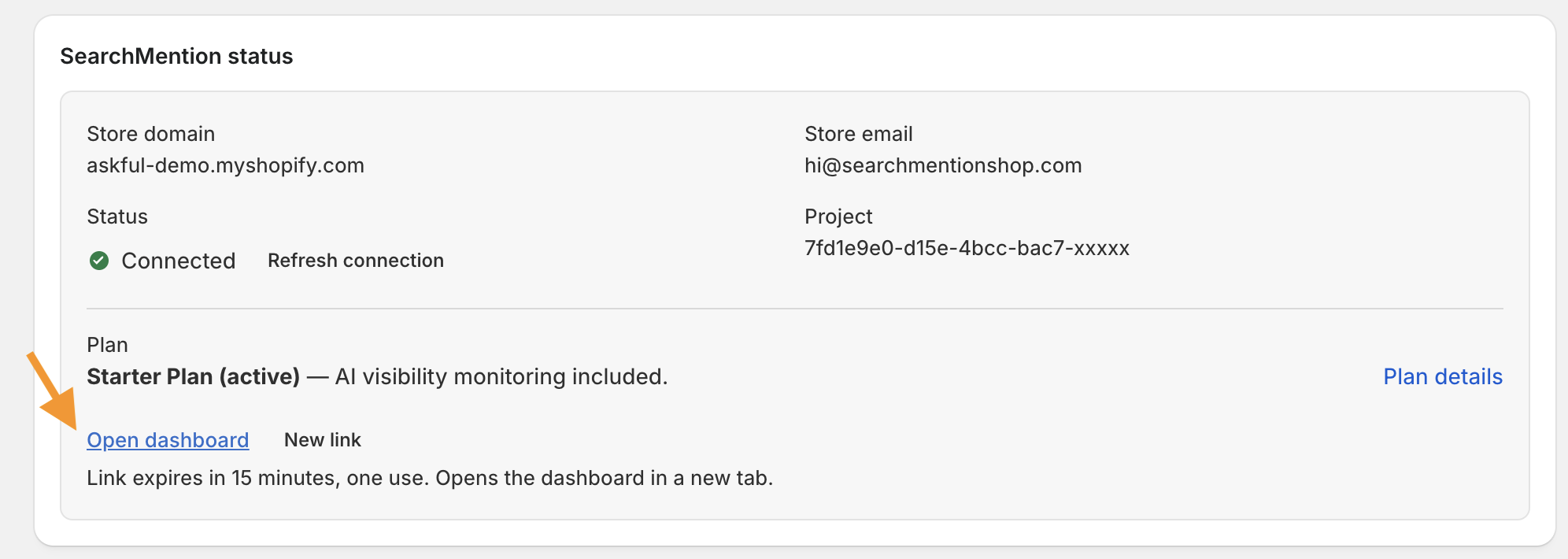
The embedded app is ideal for quick status and actions; deeper pages & readiness, prompts & competitors, and settings live on the web app. From SearchMention status, click Generate login link, then Open dashboard on the next screen. The link is single-use and expires in fifteen minutes—it opens your project in a new tab without a separate password.
Questions? Use support from your Shopify admin listing or open the dashboard’s help resources after you sign in.